



 Blacktel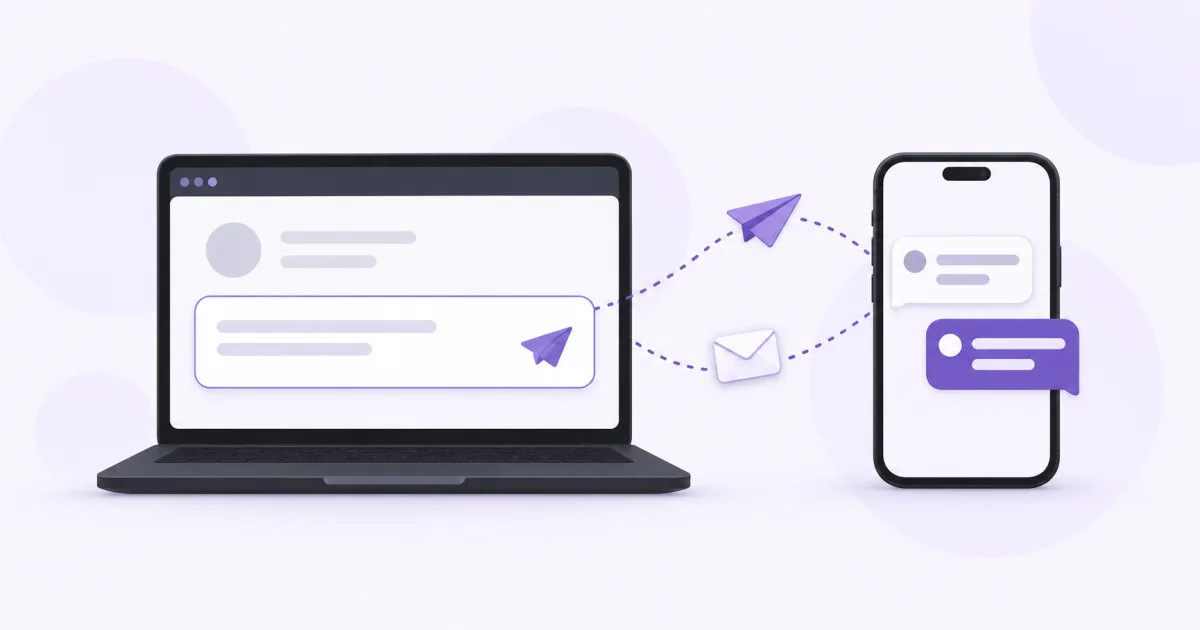
Blacktel lets you compose SMS text messages in a browser and send them to a phone number. This is different from sending a chat message inside WhatsApp, Telegram or another messaging app.
Choose how you want to send
Use the Free Text Messages page to explore the shared Free Phone service within its available wallet and limits. Sending requires the account and checks shown on the page. Shared receiving messages are public.
For messages associated with your own number, choose an active SMS-enabled virtual number and open the Webphone. Check the outgoing SMS price and your available credit before you send.
Send an SMS from your browser
- Sign in to Blacktel and open the SMS area of the Webphone, or open Free Text Messages for the shared service.
- If using your own number, select the SMS-enabled sender you intend to use.
- Choose the recipient's country and enter the phone number. Check the country code carefully and do not enter it twice.
- Write the text. Review the recipient, message length and displayed sending information before submitting.
- Send the message once and check its status or your message activity. A submitted message is not necessarily already delivered.
- Open Messages to find the conversation and any replies received by your own number.
Message length, characters and replies
Keep your message within the length limit shown by the composer. Blacktel checks message length before sending and can reject an overlong text; do not assume the form will split it automatically. Emoji and non-Latin text may affect the permitted length, so shorten the text when asked and check the current sending price.
A recipient replies to the sender number they received. Keep that number active and make sure it supports incoming SMS. A reply sent to a shared Free Phone number belongs to its public receiving inbox, not to a private conversation.
Before sending again
- Check that the selected sender supports SMS and the recipient number is complete.
- Look at the activity or delivery status before repeating the same submission.
- Use ordinary SMS text; do not assume a web link or an image attachment turns the message into MMS.
- For personal information, use your own private number and account rather than a shared inbox.
Questions and answers
Does the recipient need Blacktel?
An SMS is addressed to the recipient's phone number. They do not need to use the Blacktel website to read a delivered text.
Can I send international text messages?
Choose the correct destination and check current availability and SMS pricing. International formatting and the selected number's capabilities still matter.
Useful tools and links
Next step
Compare number types, services and activation requirements before choosing your number.