



 Blacktel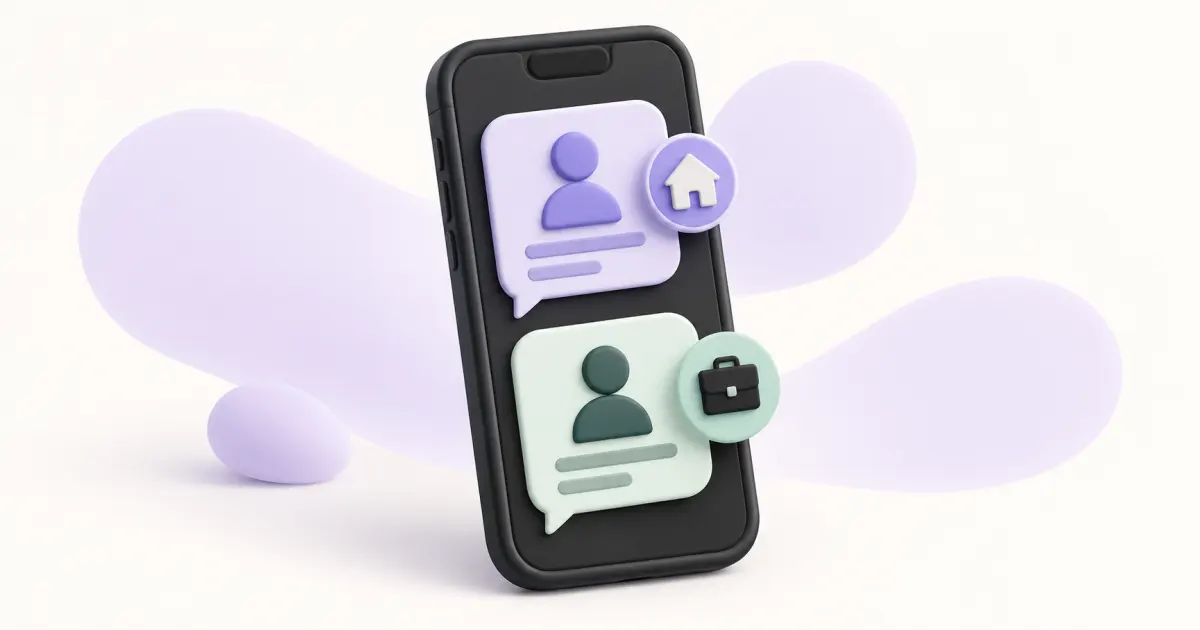
Two WhatsApp accounts let you keep personal and work conversations separate on one phone. Each account needs its own eligible phone number. Adding an account is different from linking another device to the same account or changing an existing account’s number.
Prepare two numbers you control
Use the official WhatsApp app and check that its current version offers Add account on your device. Keep access to both registered numbers for verification and recovery. A travel data eSIM supplies internet but does not by itself create a second telephone number.
Add and distinguish the second account
- Open WhatsApp settings and use the account switcher or Add account option where available.
- Enter the second eligible number in the correct international format.
- Complete the verification method offered for that number.
- Set a recognizable profile and review that account’s notifications and privacy.
- Switch accounts before composing and check which profile is active.
Keep both accounts available
Review backups and recovery settings for each account separately. Keep both numbers active and update WhatsApp before cancelling or changing either number. If your device does not show the feature, check the official app guidance; do not install an imitation app to obtain extra accounts.
Questions and answers
Are linked devices a second account?
No. Linked devices access the same account; a second account has a separate registered number and conversations.
Can one number register both accounts?
Use separate eligible numbers. Keep control of the number associated with each account.
Useful tools and links
Official references
Next step
Compare number types, services and activation requirements before choosing your number.